
Fulfillment
UniFi door and gate access for staff and customers with Neon Access
Connect Neon to UniFi Access and your doors and gates follow your records. Employees get door access from their Neon record, by role and shift, and lose it the moment they're removed.
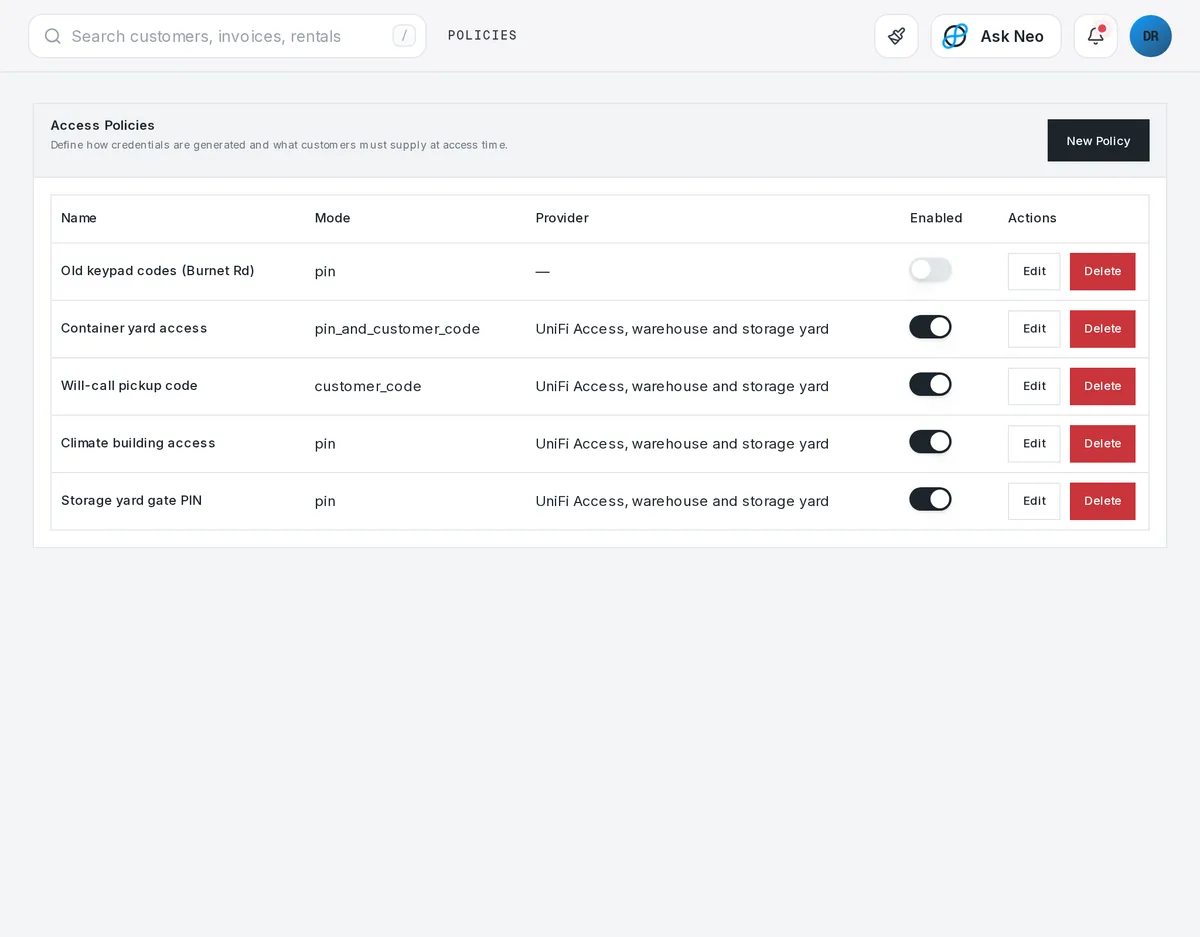
Access that's connected from the first record
Connect Neon to UniFi Access and your doors and gates follow your records. Employees get door access from their Neon record, by role and shift, and lose it the moment they're removed. Customers with an active rental, booking or storage contract get gate access for as long as the contract runs, and it closes when the contract does. Every entry comes back into Neon and lands on the employee's or customer's timeline, beside the shifts and contracts it belongs to.
How it works
Access that follows the contract.
- Step 1Contract starts
A rental, booking or storage contract on the customer.
- Step 2Access granted
UniFi Access opens the right gates for the contract's dates.
- Step 3Every entry logged
Each unlock lands on the customer's timeline.
- Step 4Access closed
When the contract ends, so does the access. Nobody revokes it by hand.
Access · 4 features
Every feature you need, all in a single system.
- 01
UniFi Access integration
Connect UniFi Access once and your doors and gates follow your Neon records.
- 02
Employee door access
Staff get door access by role and shift, and lose it the moment they're removed.
- 03
Customer gate access
Customers with an active contract get gate access that closes when the contract does.
- 04
Entry logs on every timeline
Every entry lands on the person's timeline, beside their shifts or contracts.
What makes Access in Neon fit your business?
All of it is configured from the admin panel. No developer, no plugin, no second tool.
- Which doors and gates each role opens
- Access tied to shifts or contract dates
- Which entries are logged where
Access works with the rest of Neon
Nothing gets re-entered between them.
Or just ask Neo.
Press ⌘CtrlK on any screen and say what you want. Neo finds the screen, reads your live numbers and fills the form in. You press submit.
Check out other Neon features:
Deliveries
Route planning, tracking & real-time updates.
Available in Texas only today
Learn moreShipping
Rates, labels & tracking for orders that ship.
Learn morePickup
Order online, collect in store, with ready-for-pickup alerts.
Learn moreInventory
Track stock, manage products, automate reorder points.
Learn moreRentals
Combos, options, rules & automated billing.
Learn moreBookings
Combos, options, scheduling & confirmations.
Learn moreIt's time to run Access on one login.
Every account starts with a short conversation. Tell us what you run and we'll set it up with you.