
Fulfillment
Order online, collect in store, with ready-for-pickup alerts with Neon Pickup
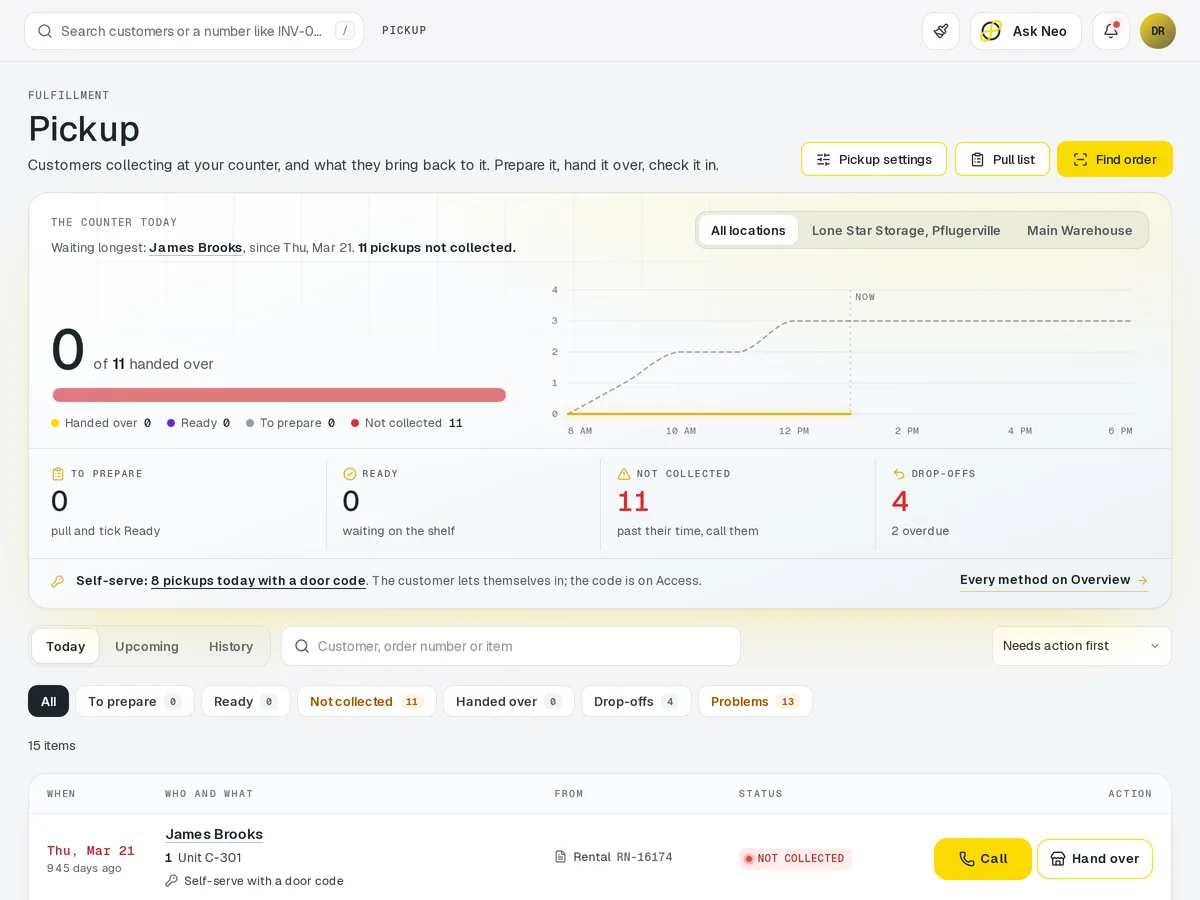
Let customers buy online and collect at the counter. Each order gets a pickup window at the location that holds the stock, the customer is told when it's ready, and staff mark it handed over from the same order screen.
Pickup that's connected from the first record
Let customers buy online and collect at the counter. Each order gets a pickup window at the location that holds the stock, the customer is told when it's ready, and staff mark it handed over from the same order screen. Pickup orders come out of the Storefront and the stock count like any other sale, and every handover is recorded on the customer's timeline.
How it works
Order online, collect at the counter.
- Step 1Pickup chosen
At checkout, with a window at the location holding the stock.
- Step 2Order packed
Marked ready on the order screen.
- Step 3Customer told
A ready-for-pickup message on your template.
- Step 4Handed over
Confirmed from the same screen.
- Step 5On the timeline
The handover is recorded on the customer's record.
Pickup · 4 features
Every feature you need, all in a single system.
- 01
Buy online, pick up in store
Customers buy online and collect at the counter, with stock counted like any sale.
- 02
Pickup windows by location
Each order gets a pickup window at the location that actually holds the stock.
- 03
Ready-for-pickup notifications
Customers are told the moment their order is ready, on your own message template.
- 04
Handover confirmation
Staff mark each order handed over, and it's recorded on the customer's timeline.
What makes Pickup in Neon fit your business?
All of it is configured from the admin panel. No developer, no plugin, no second tool.
- Pickup locations & opening hours
- Slot length & capacity per window
- Hold time before an order is restocked
- Ready-for-pickup message templates
- Pickup instructions per location
Pickup works with the rest of Neon
Nothing gets re-entered between them.
Or just ask Neo.
Press ⌘CtrlK on any screen and say what you want. Neo finds the screen, reads your live numbers and fills the form in. You press submit.
Check out other Neon features:
Deliveries
Route planning, tracking & real-time updates.
Available in Texas only today
Learn moreShipping
Rates, labels & tracking for orders that ship.
Learn moreAccess
UniFi door and gate access for staff and customers.
Learn moreInventory
Track stock, manage products, automate reorder points.
Learn moreRentals
Combos, options, rules & automated billing.
Learn moreBookings
Combos, options, scheduling & confirmations.
Learn moreIt's time to run Pickup on one login.
Every account starts with a short conversation. Tell us what you run and we'll set it up with you.